
If your venue prints paper tickets, you are likely going to need to print a single or selected tickets from a larger order at some point during your time on the Box Office (there's always at least one person that has lost their ticket by the night of a show!).
Ticketsolve makes printing single or selected tickets from a whole order easy! Watch a walkthrough in the video below or scroll down for written instructions.
1. Navigate to Box Office > Search Orders and find your order. Click on the the Additional Options icon (3 dots, far right) and select View Order.
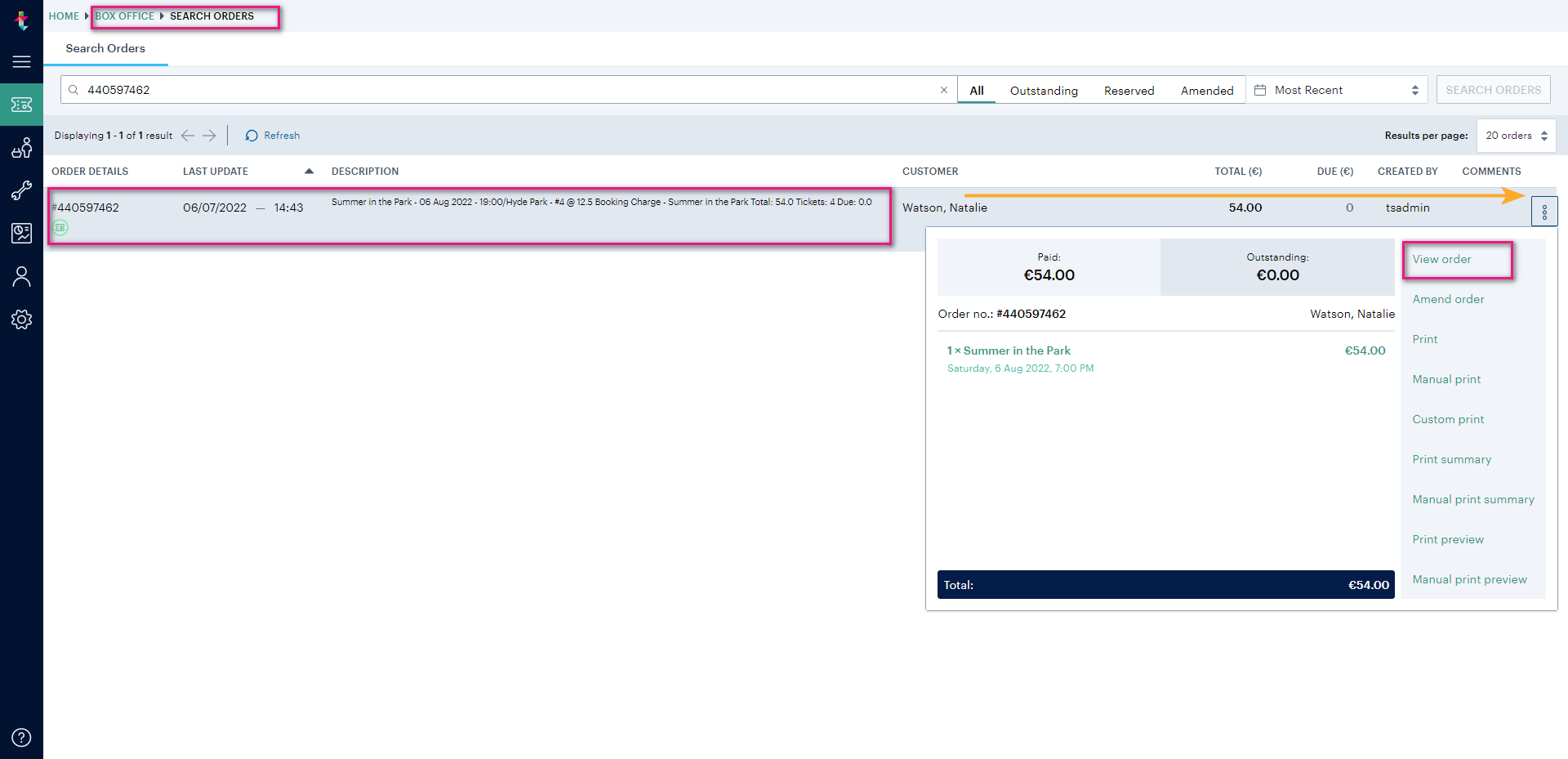
You'll be taken to the Order Summary page.
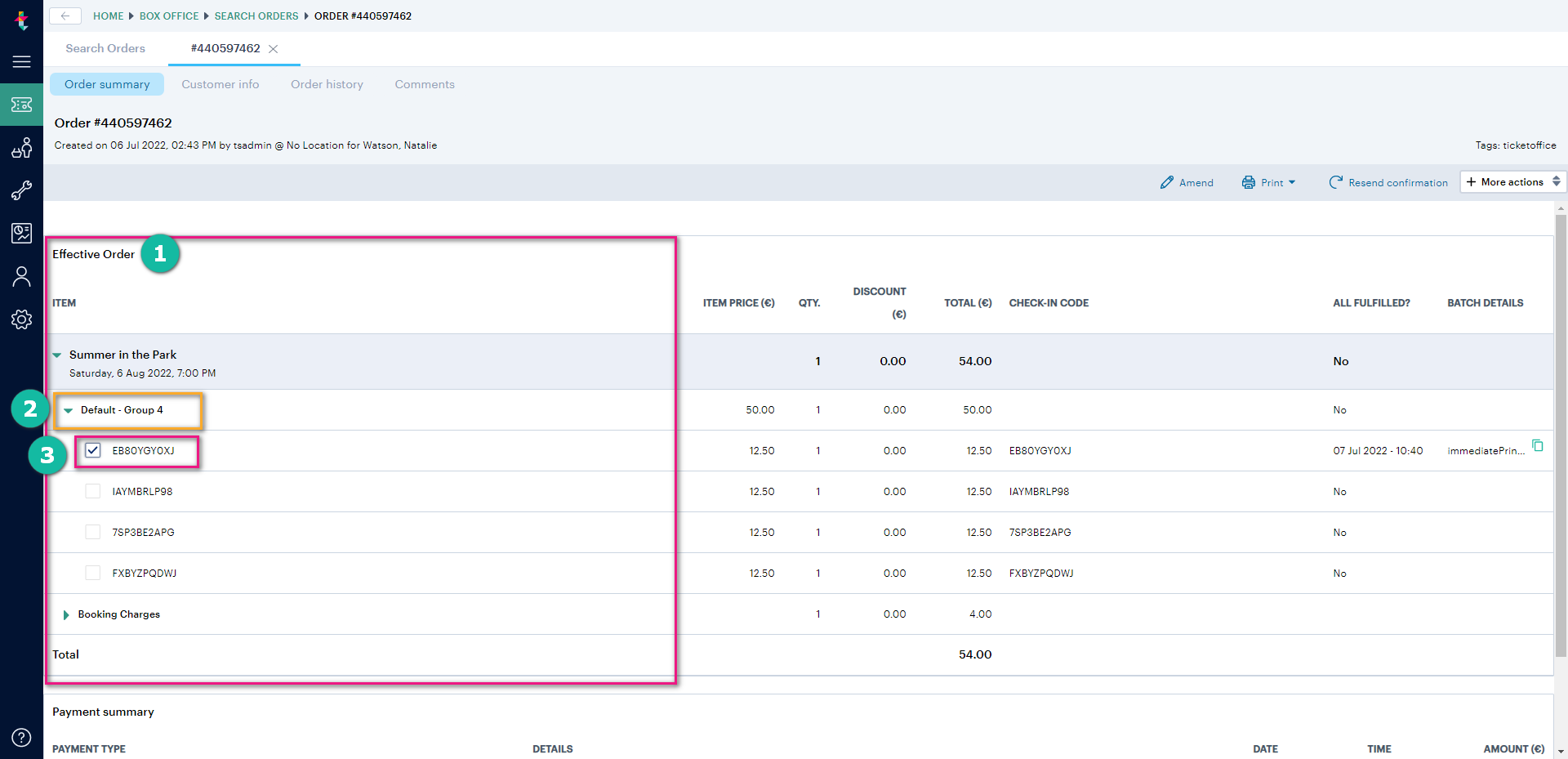
2. From the Order Summary page, under Effective Order you will see a list of tickets, grouped by Event, Ticket Allocation and Ticket Price.
3. Click the green arrow to expand the group(s) containing the ticket(s) you want to print.
4. Tick the box next to the individual tickets to select which ticket(s) to print.
5. Once you've selected the ticket(s) to print, navigate to the Print button and select the option titled Print Selected Tickets.
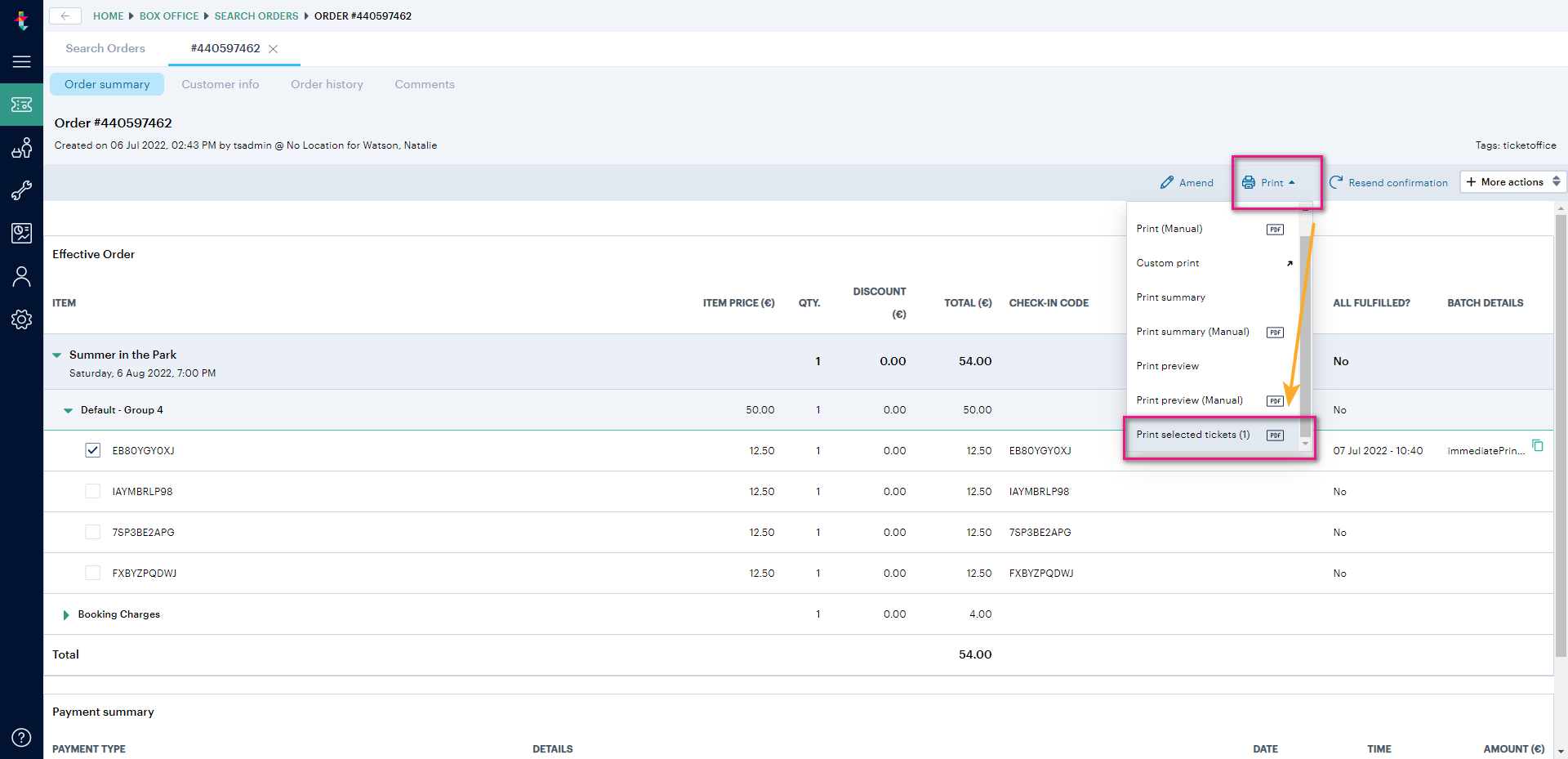
6. Your tickets will then be downloaded to your device as a PDF ready to print.
Note: when printing tickets from a PDF make sure you are using Adobe Acrobat Reader (not internet browsers like Chrome or Edge etc.) to ensure that your tickets print correctly.
Comments
Please sign in to leave a comment.